

How to Set Up a VPN on Android TV: A Step-by-Step Guide
 Sharon
  2026.10.05
Want to protect your Android TV connection while streaming movies, TV shows, and other online content?
Setting up PandaVPN on Android TV takes only a few minutes. Once installed, you can connect your TV to a secure VPN server, choose from international server locations, and enjoy a more flexible streaming and browsing experience.
PandaVPN combines a global server network with high-speed infrastructure, modern VPN protocols, and privacy-focused security features, making it a convenient choice for Android TV users.

Why Use PandaVPN on Android TV?
A VPN isn’t only useful on computers and smartphones. Your Android TV also connects directly to the internet, making VPN protection useful when you’re streaming, browsing, or using other online services.
Here are some of the features that make PandaVPN suitable for Android TV.
6,000+ Servers Across 100 Countries
PandaVPN provides 6,000+ servers across 100 countries, giving you a wide range of international connection options.
You can select an available server based on your location, streaming requirements, or network conditions. If a particular server is congested or doesn’t provide the performance you need, you can switch to another available location.
PandaVPN also provides optimized streaming routes designed to improve connectivity to supported streaming platforms.
High-Speed 10Gbps Infrastructure
Streaming HD and 4K video requires a stable, high-capacity connection.
PandaVPN provides access to 10Gbps ultra-fast servers and uses IPLC (International Private Leased Circuit) technology on supported routes to optimize international connectivity.
Combined with PandaVPN’s patented acceleration technology, this infrastructure is designed to provide efficient and stable connections for bandwidth-intensive activities such as video streaming.
Actual streaming performance depends on factors including your internet connection, Wi-Fi quality, server load, device capabilities, and the streaming platform.
ECC-Based Encryption
Your Android TV sends and receives internet traffic whenever you stream or browse online.
PandaVPN uses ECC (Elliptic Curve Cryptography)-based encryption technology to help secure data transmitted through the VPN tunnel.
This provides an additional layer of protection when using your TV on home networks or other networks where you don’t want your internet traffic exposed to local network observers.
Simple QR Code Login
Typing long account credentials using a TV remote can be inconvenient.
PandaVPN provides a QR code login option on supported Android TV versions, allowing you to scan the code with your smartphone browser and complete the login process more easily.
You can also enter your account credentials directly on the TV when preferred.
7-Day Money-Back Guarantee
PandaVPN plans include a 7-day money-back guarantee, giving eligible customers an opportunity to try the service with less commitment.
Be sure to review the applicable terms and conditions for the current refund policy before purchasing.
How to Set Up PandaVPN on Android TV
Once your Android TV is connected to the internet, follow these steps to install and configure PandaVPN.
Step 1: Sign Up for a PandaVPN Account
Before installing the app, create a PandaVPN account and choose a subscription plan.
Visit the official PandaVPN website to get started.
After signing up, keep your login credentials available for the TV setup.
Step 2: Download PandaVPN on Android TV
There are two ways to install PandaVPN, depending on your Android TV device and the available app store.
Option 1: Install from Google Play
- Turn on your Android TV.
- Open the Google Play Store.
- Search for PandaVPN.
- Select the official PandaVPN app.
- Click Install.
- Wait for the installation to complete.
The Google Play method is generally the simplest option when the PandaVPN app is available for your device.
Option 2: Install the APK
If the app isn’t available through your Android TV’s Google Play Store, you may be able to install the Android TV APK manually.
Download PandaVPN for Android TV
Download the appropriate APK from the official PandaVPN website and follow your Android TV manufacturer’s instructions for installing applications from external sources.
Only download the APK from a trusted, official source to reduce the risk of installing modified or malicious software.
Step 3: Open PandaVPN and Log In
Launch PandaVPN after installation.
You can normally sign in using either of the available login methods:
Enter your account credentials: Use the TV remote or connected keyboard to enter your account information.
Scan the QR code: If QR code login is available on your device, scan the code displayed on your TV using your smartphone browser and follow the instructions to complete authentication.
The QR code method can be particularly convenient when you don’t want to type account information using a remote control.
Step 4: Choose a VPN Server
After logging in, open the server list and select your preferred location.
PandaVPN provides 6,000+ servers across 100 countries, giving you plenty of connection options.
For general streaming, choosing a server with a strong connection and relatively low latency can help improve performance.
If you’re looking for content associated with a particular country, select an available server in that region.
Keep in mind that streaming platforms control their own regional catalogs and may restrict VPN or proxy connections. Connecting to a VPN server does not guarantee access to every title or regional library.
Step 5: Connect to PandaVPN
Once you’ve selected a server, click Connect.
PandaVPN will establish an encrypted VPN connection between your Android TV and the selected VPN server.
When the connection is active, your TV’s internet traffic is routed through the VPN connection.
You can now open your preferred streaming app or browser and begin using the internet through PandaVPN.
How to Choose the Best PandaVPN Server for Android TV
The best server isn’t necessarily the one that is geographically closest to you. Your ideal choice depends on what you’re trying to do.
For the best general performance, consider a server with low latency and a stable connection.
For international streaming, select a server in the country associated with the service or content you’re trying to access.
If your current connection is slow, congested, or unavailable, simply try another server in the same region.
PandaVPN’s large global network makes it easy to switch between available connection locations.
Troubleshooting PandaVPN on Android TV
Most installations are straightforward, but you may occasionally encounter connection or compatibility issues.
“Connection failed, your device is missing a component required for VPN”
If you see an error such as:
“Connection failed, your device is missing a component required for VPN.”
your Android TV device may not have the required VPN framework components or may have an outdated system configuration.
Try the following steps:
- Update Android TV: Go to your TV’s system settings and install any available system updates.
- Restart the TV: Restart the device after completing the system update.
- Reinstall PandaVPN: Remove the app and install the latest compatible version.
- Check device compatibility: Make sure your Android TV meets the application’s supported requirements.
- Contact support: If the problem continues, contact PandaVPN support with your device model and Android TV version.
PandaVPN Connects but Streaming Is Slow
If the VPN connects successfully but streaming performance isn’t satisfactory:
- Try another server in the same region.
- Choose a server with lower latency.
- Check your Android TV’s Wi-Fi connection.
- If possible, use a wired Ethernet connection.
- Try switching between supported VPN protocols.
- Restart the streaming application after connecting to the VPN.
Remember that VPN performance can be affected by your ISP, Wi-Fi environment, server load, and the streaming service’s own infrastructure.
Streaming Service Shows a Proxy or VPN Error
Some streaming platforms actively detect and restrict VPN and proxy connections.
If you encounter a proxy-related error, try another available PandaVPN server. Different servers can use different IP addresses, and the status of individual IP addresses can change over time.
No VPN provider can guarantee uninterrupted access to every streaming platform or regional catalog.
Why Choose PandaVPN for Android TV?
PandaVPN is designed to combine streaming performance, international connectivity, privacy protection, and multi-device flexibility in a single service.
With PandaVPN, you get:
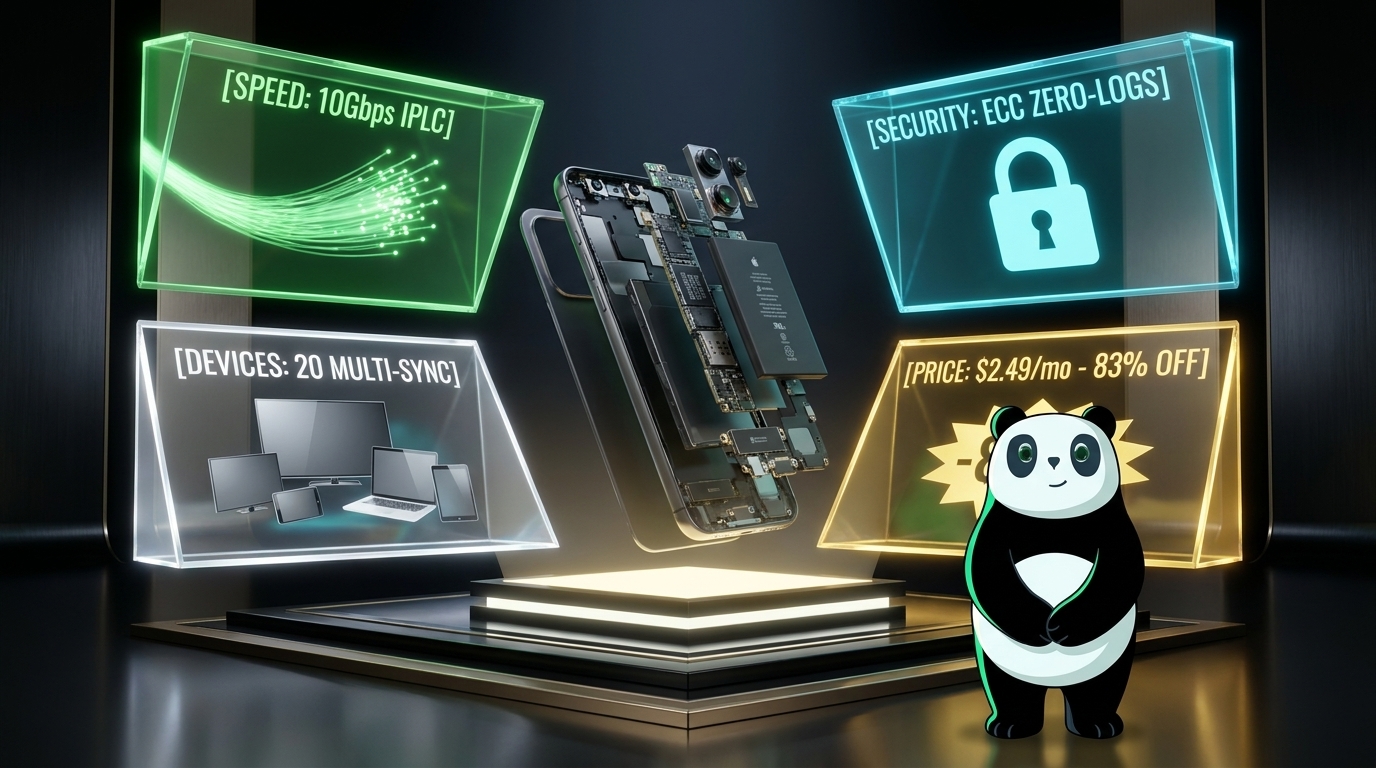
- 6,000+ servers across 100 countries
- 10Gbps ultra-fast servers
- IPLC technology on supported international routes
- Patented acceleration technology
- Optimized streaming routes
- ECC-based encryption
- WireGuard and OpenVPN support
- Unlimited bandwidth and traffic
- Up to 20 simultaneous device connections
- Android TV, Windows, macOS, Linux, iOS, Android, and Apple TV support
- No-Logs policy
- 7-day money-back guarantee
Enjoy a More Flexible Android TV Experience with PandaVPN
Installing a VPN on Android TV doesn’t have to be complicated.
With PandaVPN, you can install the dedicated Android TV app, sign in using your account or QR code, select a server, and establish an encrypted connection in just a few steps.
Whether you’re streaming movies at home, connecting to international services, or simply adding another layer of privacy to your TV’s internet connection, PandaVPN provides a combination of global server coverage, high-speed infrastructure, optimized routes, and privacy-focused security.
Download PandaVPN for Android TV and get your Android TV connected in minutes.

Related Posts

Featured Posts